Vidu AI Video Generator

Animate a photo or create a scene from text with the Vidu AI video generator on LitVideo. Vidu Q1 creates five-second clips at 1080p, and your prompt guides how the subject and camera move.

Upload images or describe the video you want to create.

Popular brand logos and partners

Vidu AI Video Generator: Turn Your Creative Ideas into Vivid Videos in Seconds

Looking for a powerful, reliable Vidu AI video generator that balances visual realism with rapid production speed? With Vidu AI integrated directly into LitVideo, creators, marketers, and storytellers can transform simple text prompts or visual concepts into dynamic, high-detail videos in seconds—without needing complex editing software or heavy hardware.

From social media shorts and promotional clips to visual storyboards and concept art, Vidu empowers you to iterate faster, maintain visual consistency, and bring imaginative scenes to life with ease.

Why Choose Vidu AI on LitVideo?

Creating compelling video content often means choosing between high visual quality and fast turnaround times. Using Vidu AI on LitVideo eliminates that compromise by combining advanced video synthesis with a streamlined, creator-first workspace:

  • Vivid Visual Details & Expressive Motion: Generate crisp textures, natural lighting, rich depth, and fluid subject movement that capture viewer attention from the very first frame.
  • Ultra-Fast Rendering Speed: Cut down long waiting times with high-speed generation built for rapid creative testing, daily content schedules, and tight deadlines.
  • Multi-Model Versatility (Q1, 2.0, 1.5): Access multiple Vidu model generations in one place—including Vidu Q1, Vidu 2.0, and Vidu 1.5—so you can select the exact balance of speed, detail, and stylistic flair your project requires.
  • Seamless Browser-Based Workflow: No complicated setup or local GPU requirements. Simply describe your scene, pick a model, and generate directly inside LitVideo.
  • Flexible Creative Control: Refine prompts, test different camera movements or visual styles, and generate multiple variations until your clip matches your vision.

From Image to Video with Vidu AI

In Vidu AI’s image-to-video mode, your photo or illustration becomes the starting frame. Vidu Q1 lets you direct subject and camera movement in a five-second 1080p clip.

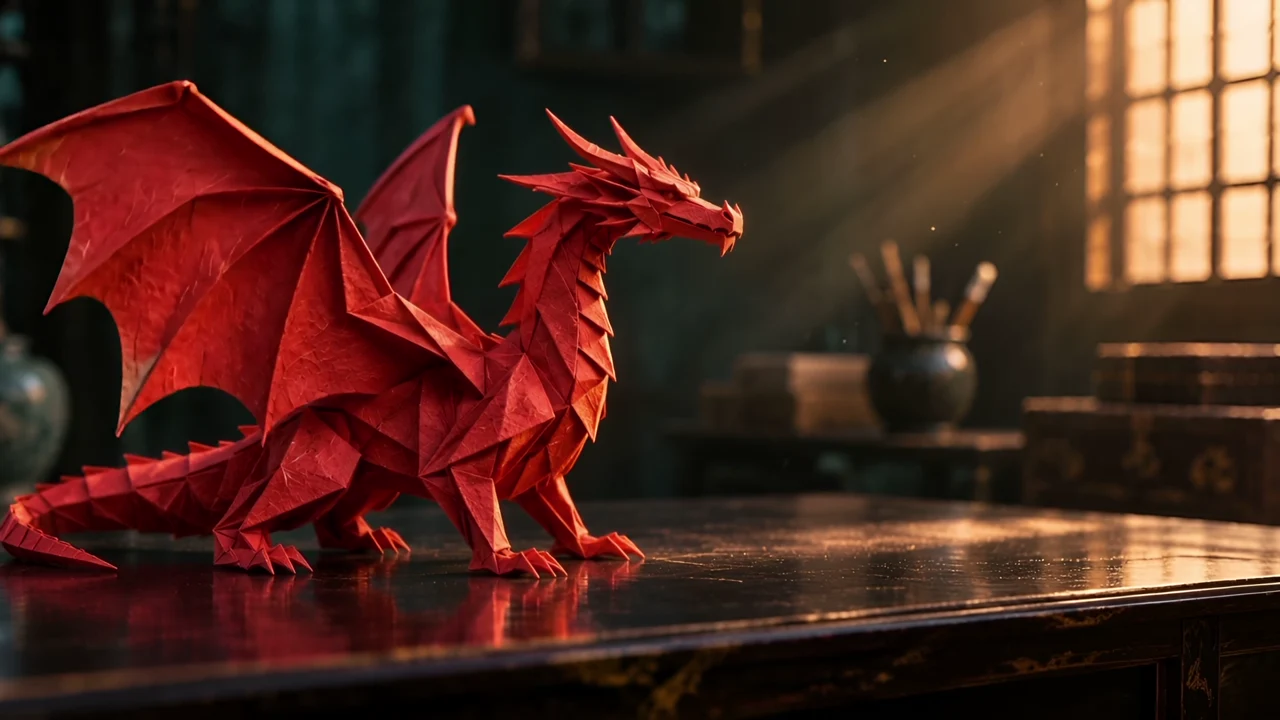
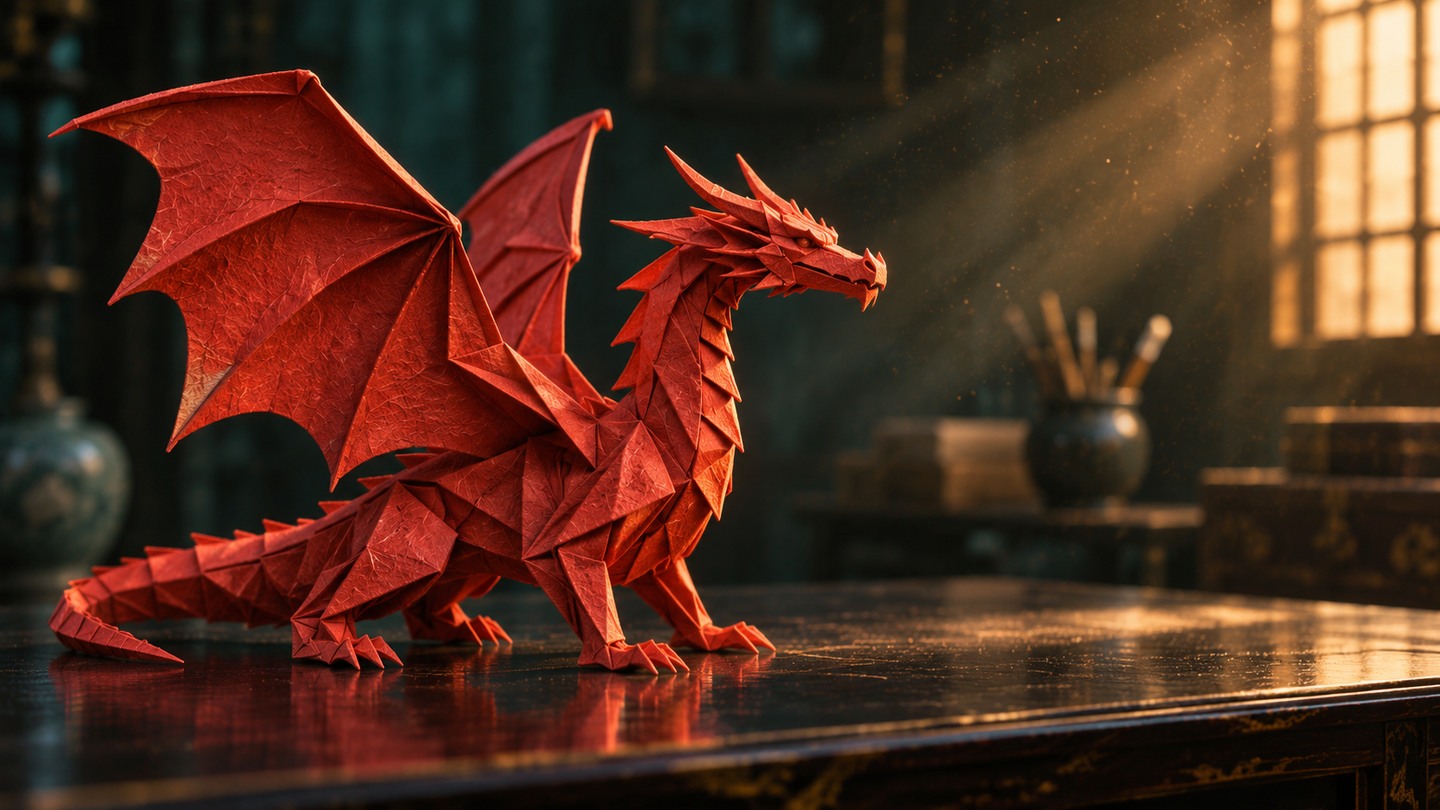
Animate the folds of a paper dragon

The paper dragon’s color, shape, and folds come from the starting image. The motion prompt asks the wings to unfold while the camera slowly pushes in.

Starting image Original · ImageGen

Red paper dragon lit by an amber beam

Generated video Vidu Q1 · 5 s

Generated in ChatArt with Vidu Q1.

When Should You Use Keyframes or Reference Images?

Start and end frames guide the composition at specific points in a shot. Vidu’s reference-to-video workflow uses multiple images to guide the appearance of subjects, props, and settings throughout a clip.

Open a mechanical capsule with two keyframes

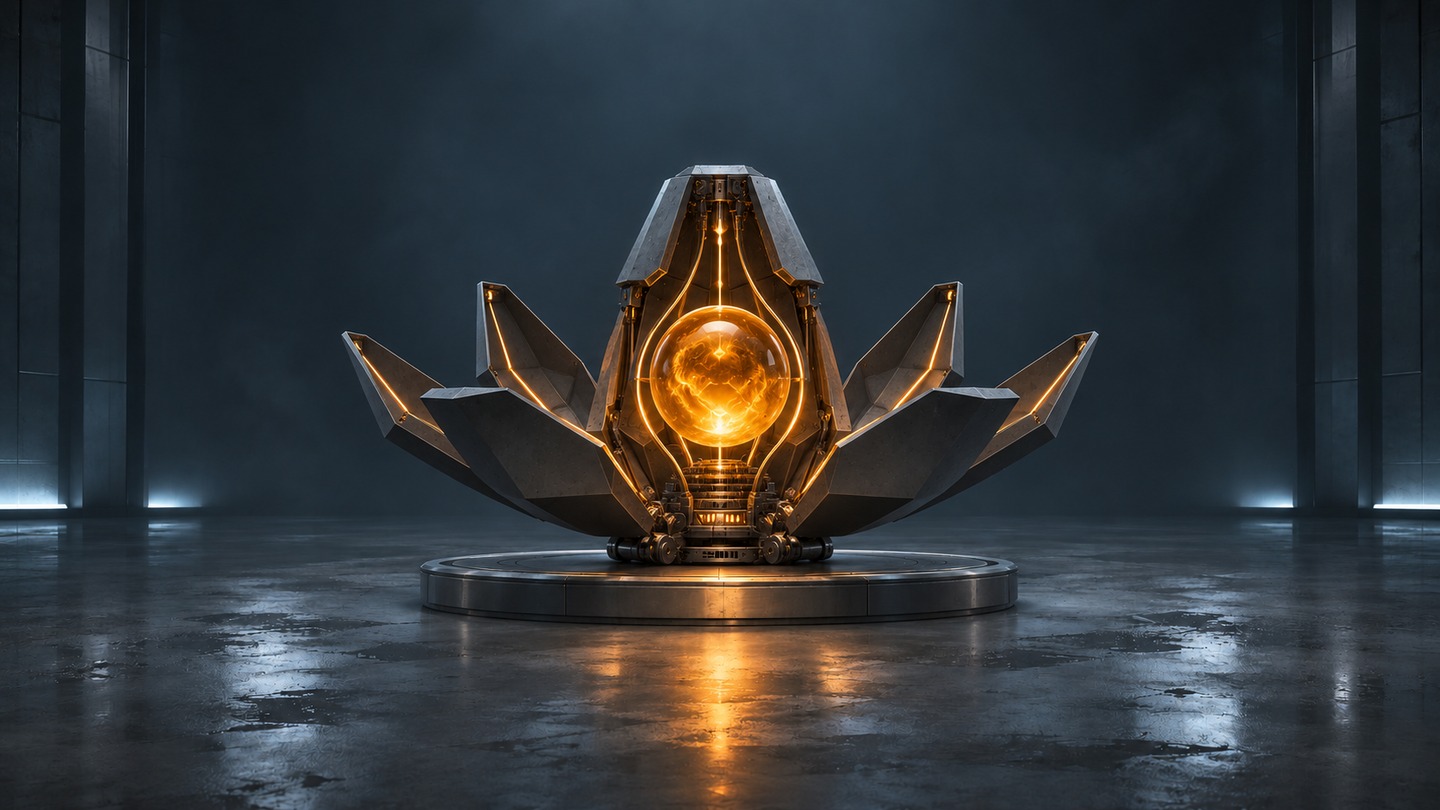
Vidu Q3 Pro supports clips from 1 to 16 seconds with a start frame and an optional end frame. The capsule example uses both frames to show where the transition begins and ends, while the prompt directs the panels as they open.

Input frames
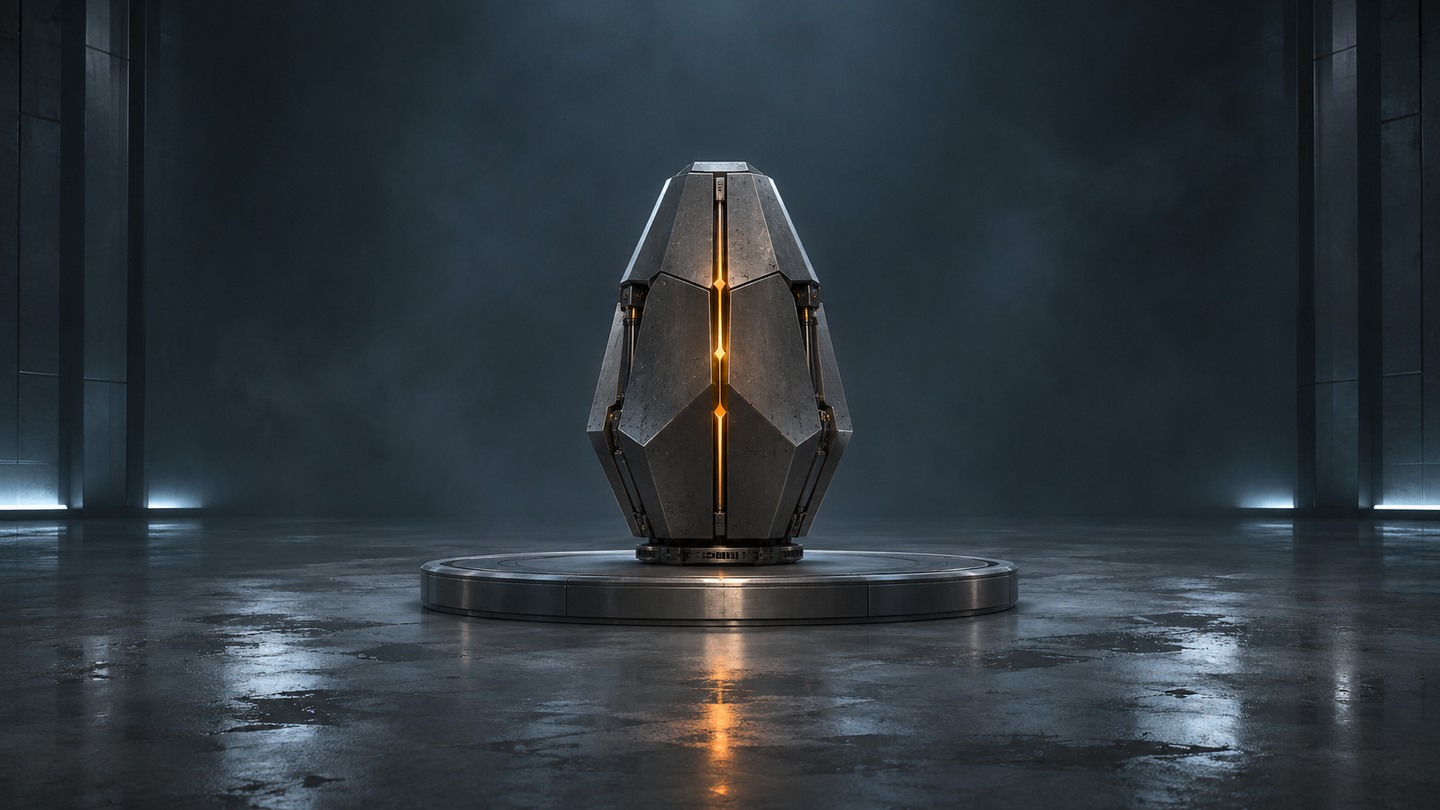
Closed titanium capsule on a circular pedestal
Start frame
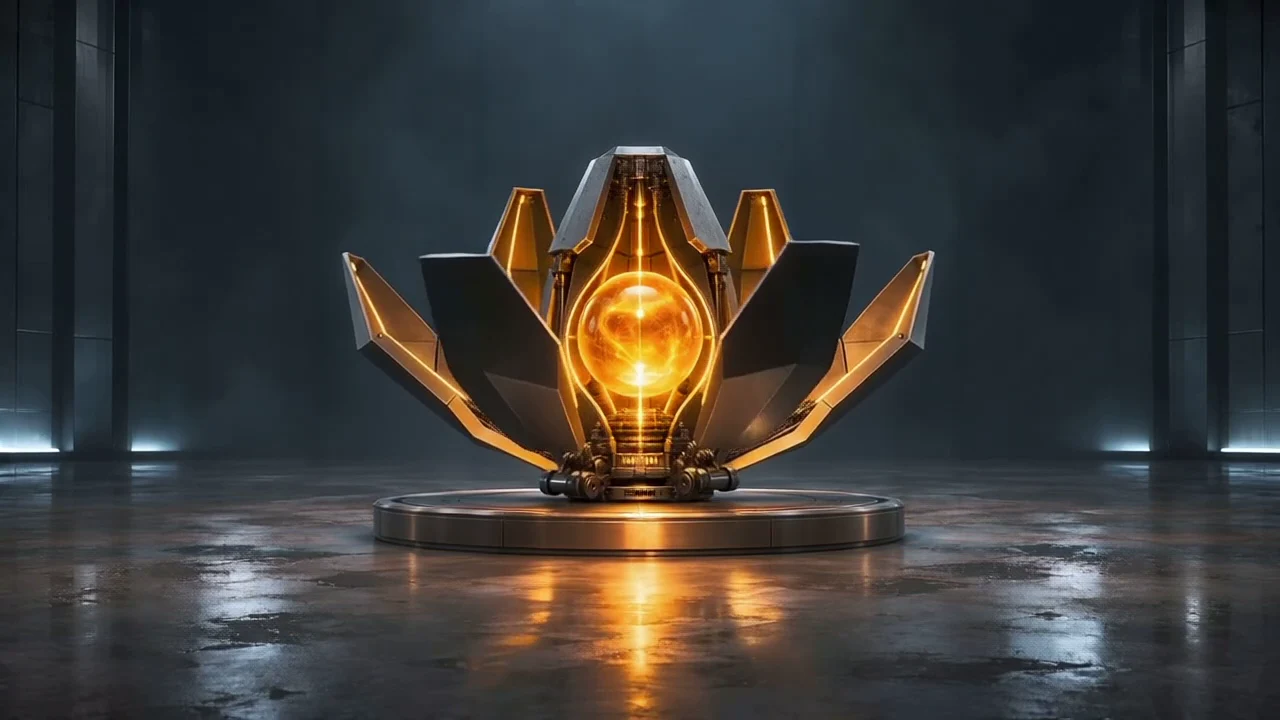
Opened capsule showing a glowing amber core
End frame

Both images fix the viewpoint, plinth and lighting. The panels are the moving element.

Generated video Vidu Q3 Pro · 5 s

Play The Amber Core

For your shot Match the viewpoint, pedestal and lighting across both images so the hinge motion remains the focus.
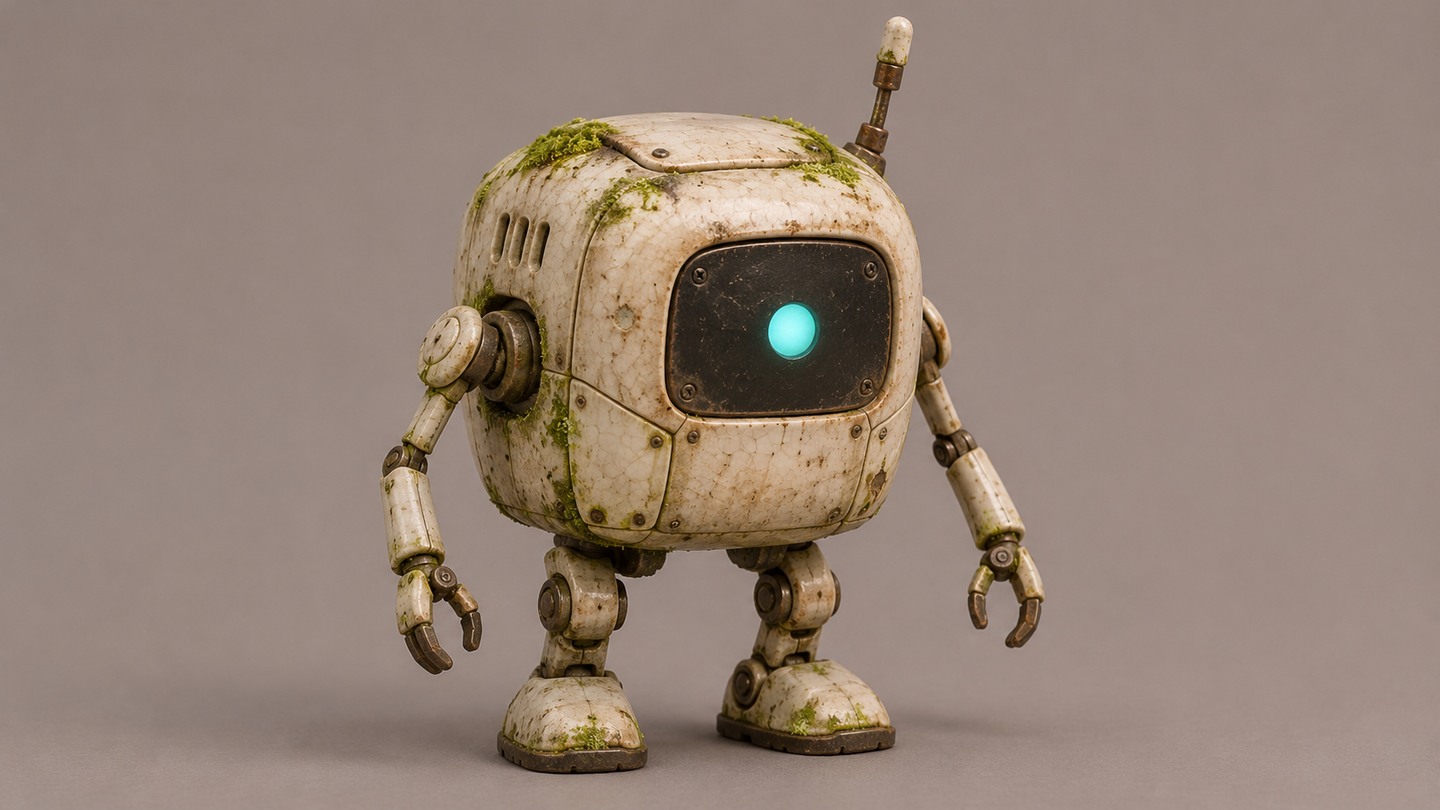
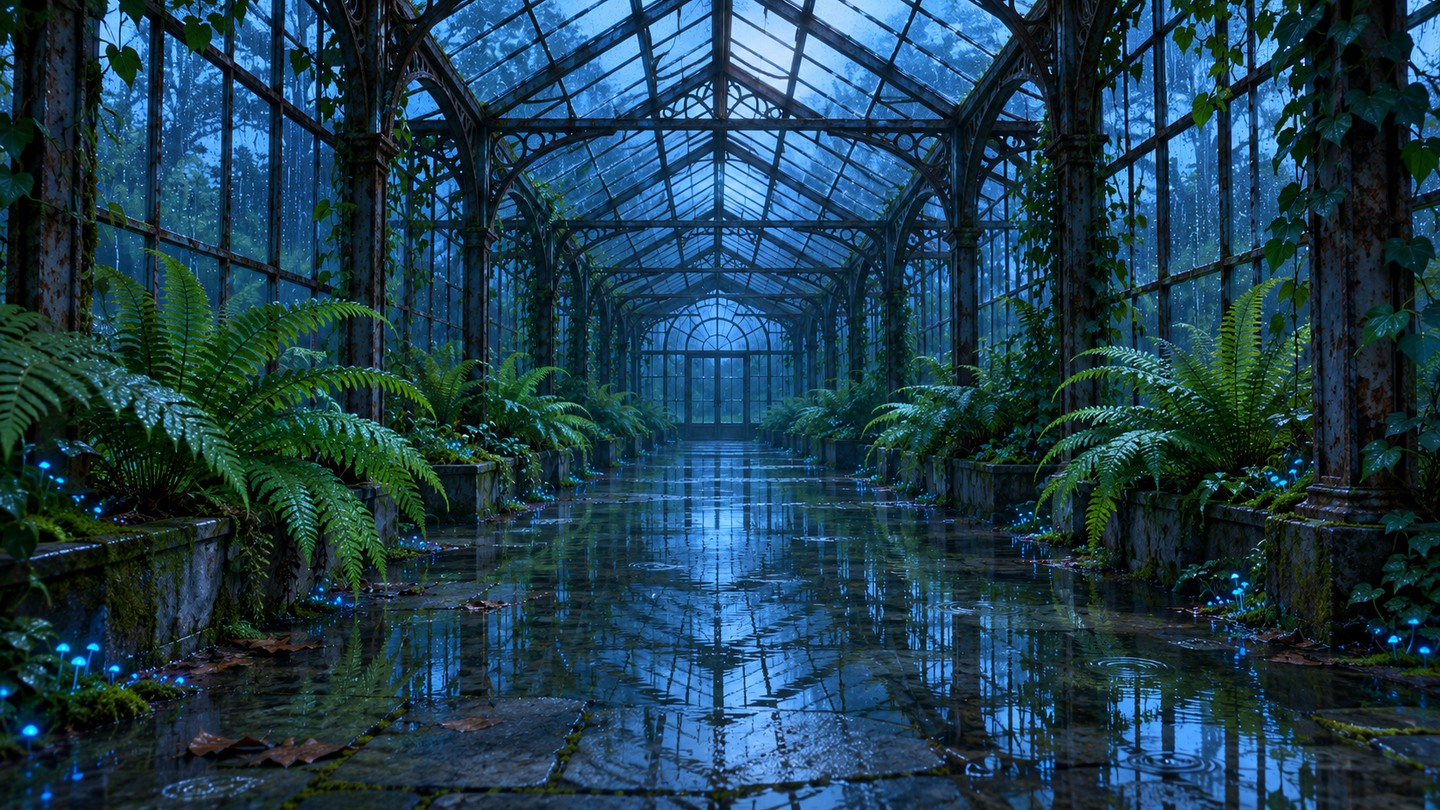
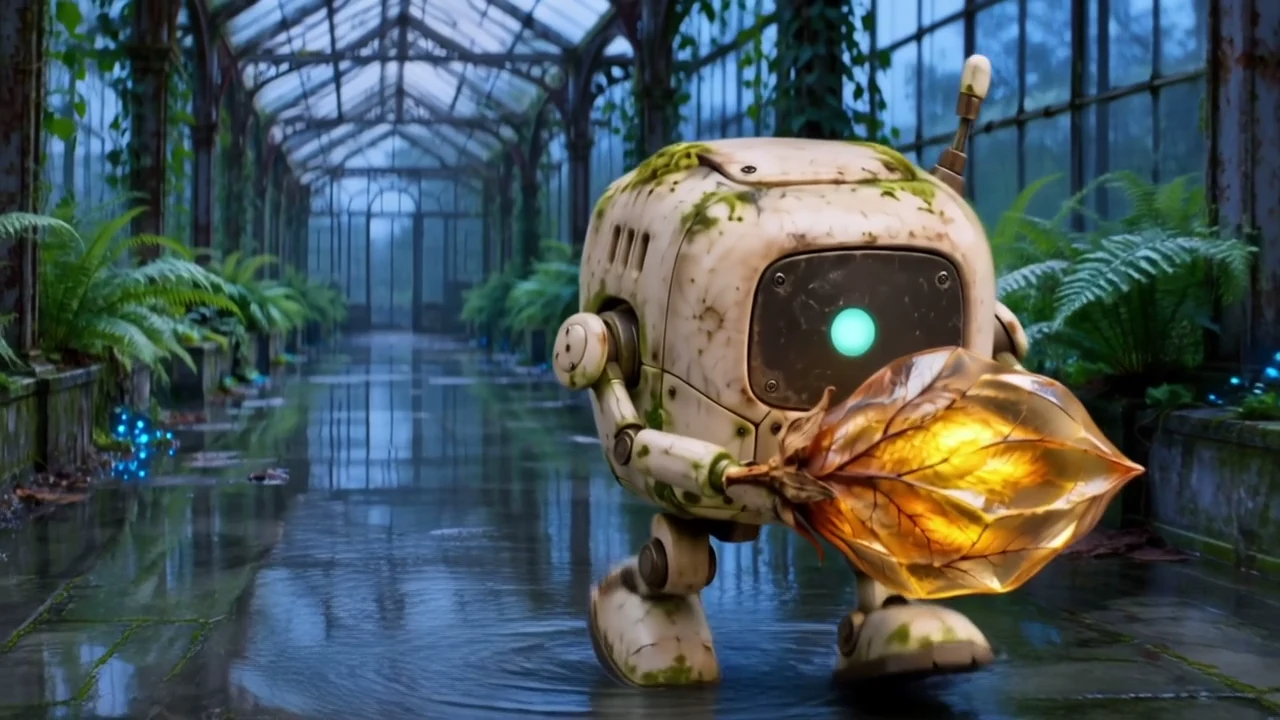
Combine a robot, greenhouse and glowing seed

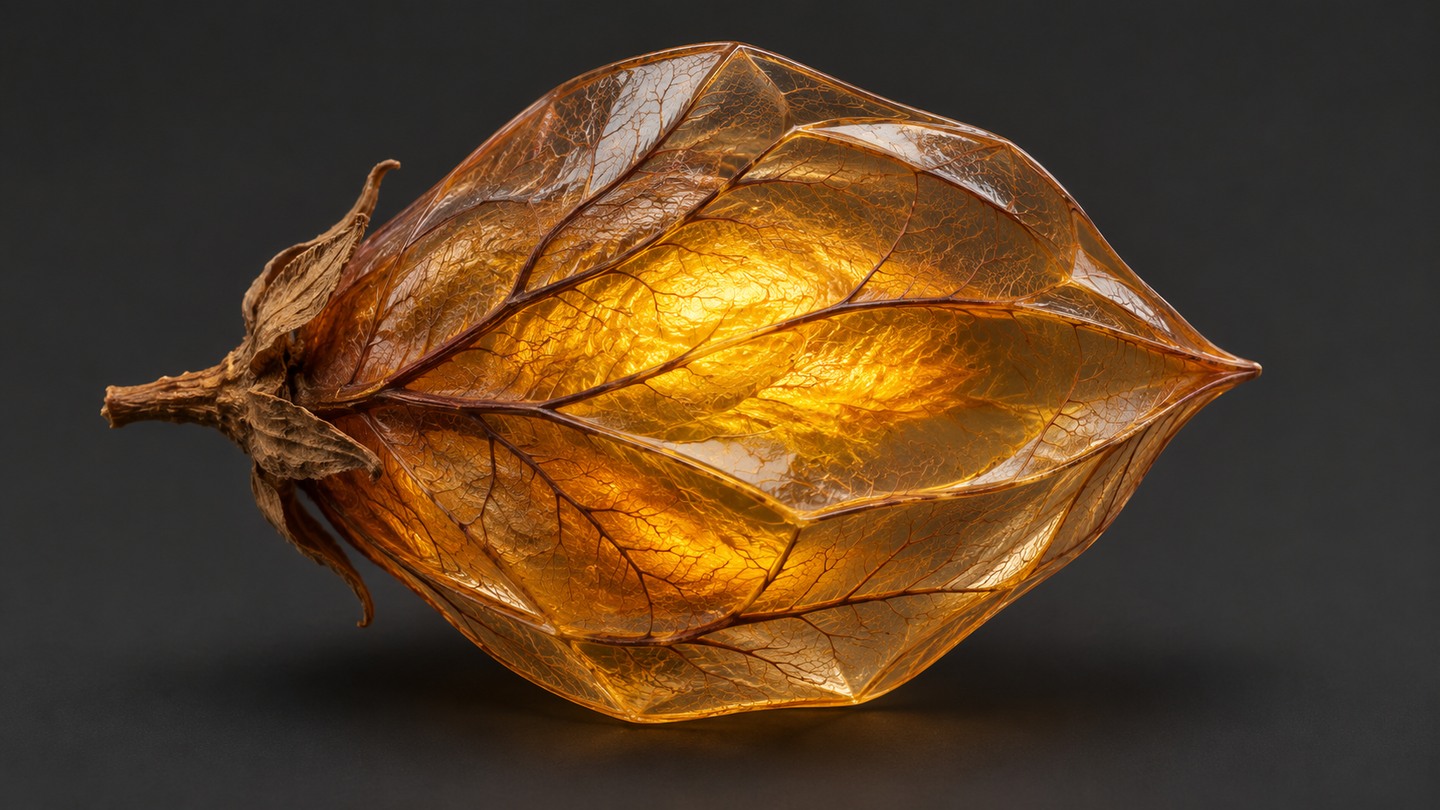
Vidu Q3 accepts up to seven reference images and can generate video at up to 1080p. The clip below uses three separate references to guide the robot, the greenhouse, and the glowing seed.

Reference images

Ivory maintenance robot with a single cyan eye
Character
Flooded greenhouse aisle at dusk
Setting
Amber seed pod with a glowing center
Prop

The robot, greenhouse and seed are uploaded as separate references.

Generated video Vidu Q3 · 6 s

Play The Greenhouse Keeper

For your shot Assign each image a single role, then use the prompt to specify the action and lighting.

Compare Vidu AI Models: Q1, 2.0, and 1.5

Every creative project has different priorities. Some require polished visual coherence for client-facing campaigns, while others benefit from quick experimentation. Through LitVideo, you can switch effortlessly among three distinct Vidu AI models:

1. Vidu 2.0 — Polished Quality & Coherent Motion

Best for: Brand storytelling, high-impact social campaigns, and scenes requiring smooth visual continuity.

Vidu 2.0 delivers refined visual fidelity, stable subject transitions, and cohesive scene composition. When you want your generated clips to look cohesive, cinematic, and ready to share with an audience, Vidu 2.0 is the ideal starting point.

2. Vidu 1.5 — Balanced Everyday Production

Best for: Daily content creation, concept validation, and reliable general-purpose video generation.

Vidu 1.5 offers a dependable balance between rendering speed and visual detail. It is well suited for creators who produce regular video updates and want predictable, consistent output across a wide range of topics and prompts.

3. Vidu Q1 — Rapid Ideation & Stylistic Exploration

Best for: Early-stage brainstorming, testing bold visual styles, and fast creative iteration.

Vidu Q1 helps you explore fresh aesthetics and test prompt variations quickly. If you are experimenting with mood, pacing, or visual direction before locking in a final look, Q1 keeps your creative momentum moving.

11 models shown.

Vidu video models compared by use case, inputs, clip length and resolution. The Vidu 1.5 row describes the LitMedia API.
ModelWhen to choose itStart withClip lengthResolution
Vidu Q3 ↗Keep a character or product consistent across shots.Up to 7 reference images, or start and end framesUp to 16 s540p / 720p / 1080p
Vidu Q3 Pro ↗Direct a transition between two specific compositions.Frames, reference images or a text prompt1–16 s540p / 720p / 1080p
Vidu Q3 Turbo ↗Test alternate takes at a lower credit rate than Q3 Pro.Frames, reference images or a text prompt1–16 s540p / 720p / 1080p
Vidu Q3 Drama ↗Build a multi-shot story in portrait or landscape.Up to 7 images and 3 audio clips2–15 s720p / 1080p
Vidu Q3 Mix ↗Combine characters, settings and styles in one scene, including square layouts.Up to 7 images and 3 audio clips2–15 s720p / 1080p
Vidu Q3 Ad ↗Turn product photos and audio into a short ad.Up to 7 images and 3 audio clips3–15 s720p / 1080p
Vidu Q2 Pro ↗Polish a short transition with a defined start and finish.First and last frames5 or 8 s720p / 1080p
Vidu Q2 Turbo ↗Try several takes of the same transition at a lower credit rate than Q2 Pro.First and last frames5 or 8 s720p / 1080p
Vidu Q1 ↗Make a five-second shot like the paper dragon example above.Text, frames or reference images5 s1080p
Vidu 2.0 ↗Animate a still and adjust how much the subject moves.Frames or multiple reference images4 s with references · 4 or 8 s with framesUp to 1080p, depending on duration
Vidu 1.5 API catalog ↗Generate a short clip from a written scene in the LitMedia API.Text prompt4 or 8 sUp to 1080p at 4 s, 720p at 8 s

Model names open the LitVideo editor. Vidu 1.5 links to its API specifications.

Explore the Vidu Q3 family

Popular Use Cases for Vidu AI Video Generator

Whether you are building a personal brand or scaling visual production for a team, the Vidu AI video generator adapts to a wide variety of workflows:

How to Create Videos with Vidu AI in 3 Simple Steps

Getting started with Vidu AI on LitVideo takes less than a minute:

  1. Write a Clear Prompt (or Prepare Your Visual Concept):

    Describe the subject, action, setting, lighting, and camera movement you want to see in your video. Specific, descriptive language helps the model produce sharper results.

  2. Choose Your Preferred Vidu Model:

    Select Vidu Q1, 2.0, or 1.5 depending on whether your priority is rapid experimentation, balanced daily output, or polished motion.

  3. Generate, Review, and Iterate:

    Click generate and watch the Vidu AI video generator render your video in seconds. Review the result, tweak your prompt if needed, and download or refine your favorite take.

Open the Vidu Q1 text editor ↗

Start Creating with Vidu AI Today

Ready to experience fast rendering and vivid visual detail? Jump into LitVideo, choose your Vidu model, and turn your next idea into a finished video in seconds.

Frequently Asked Questions (FAQ)

What is Vidu AI?

Vidu AI is an advanced AI video generation technology available on LitVideo that enables creators to turn text descriptions and visual concepts into vivid, dynamic video clips within seconds.

Do I need video editing experience to use Vidu AI?

No. The Vidu AI video generator is designed for both beginners and experienced creators. You can generate expressive video clips directly in your browser using straightforward prompts, without complex timelines or technical editing skills.

Can I try Vidu AI for free?

You can open the editor to explore the settings. Generating a clip uses credits. Check your LitVideo balance for available trial credits and review the cost shown before you generate.

What makes a good image-to-video prompt?

Tell Vidu what should change over the course of the shot. Name the moving subject and one camera move. The source image already supplies details such as the subject’s appearance and the background.

How do I keep a product or character recognizable across several clips?

Reuse the same clear product or character image in each reference-based shot. Keep identifying features visible, then compare the first and last frames of each clip before editing them together.

Does Vidu Q3 Pro require an end frame?

A start frame is enough. Add an end frame when the final composition is important, such as a product opening to reveal what is inside.

Which Vidu models accept audio references?

Q3 Drama, Mix and Ad accept image and audio references in LitVideo. Choose Drama for a short narrative, Mix to combine visual elements, or Ad for product footage.

Which settings affect how long my Vidu video can be?

Clip length depends on the model and input mode. Q1 makes a five-second clip. Q3 Pro offers 1–16 seconds, while Q3 Drama and Mix offer 2–15 seconds. Check the selected editor for its available combinations.