









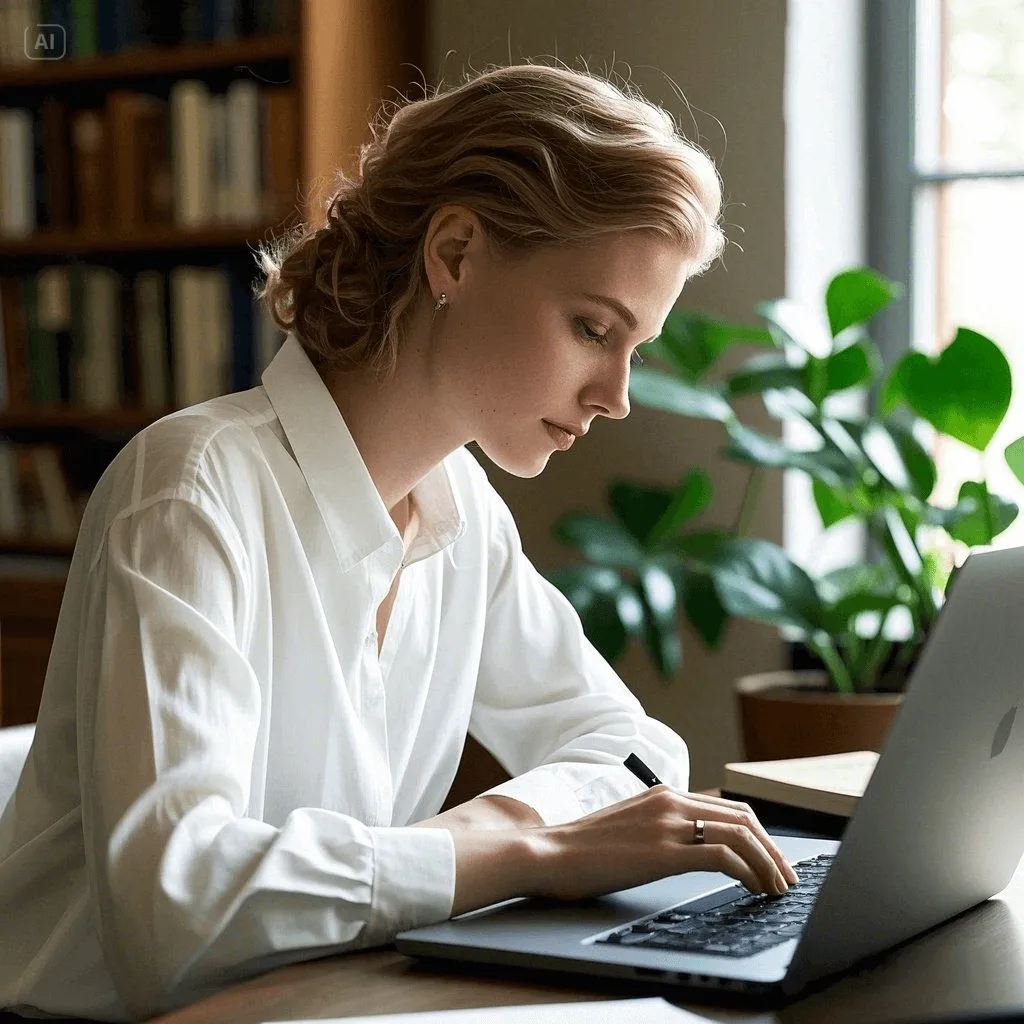
Ever saved an outfit idea and wondered how it might appear on you? AI virtual try-on gives you a way to explore a different style using photos. In LitMedia, you can upload a person photo alongside images of a top and a bottom garment to generate a new outfit image.
This guide walks you through LitMedia's AI Virtual Fitting Room, from preparing the three source images to checking the finished try-on result. You will also learn how it differs from a sizing tool and how to approach common visual issues.
Start with a clear person photo, a top image, and a bottom garment image. Treat the result as a visual style preview, rather than a measurement of how real clothing will fit.

In This Article
02 What You Need Before You Start
03 How to Create an AI Virtual Try-On Image in LitMedia
- Open the AI Virtual Fitting Room App in LitMedia
- Upload Your Person Photo, Top, and Bottom Garment to the Matching Slots
- Review the Estimated Cost, Then Click Generate Image
- Inspect the Generated Outfit Image Before Downloading
04 Three Outfit Ideas to Explore
01 What Is AI Virtual Try-On?
AI virtual try-on uses artificial intelligence to create a visual preview of a person wearing a different outfit. Depending on the tool, you might select a preset style, upload a garment reference, or preview a retailer's products on a photo or avatar. Some tools produce still images; others generate video.
These experiences serve different purposes. A template-based outfit effect helps you explore a look and create content. A retail fitting system may combine visualization with separate measurement or size-recommendation features. A realistic-looking preview alone does not establish your clothing size.
| Experience | What You Choose | What It Helps You Do |
|---|---|---|
| Template-based outfit video | A preset effect and a suitable photo | Explore a style and create a short outfit clip |
| Garment-reference try-on | A person photo and a specific clothing image | Preview the appearance of a particular garment |
| Size recommendation | Measurements, garment data, or other fit information | Receive sizing guidance, depending on the system |
In this tutorial, we use LitMedia's garment-reference AI Virtual Fitting Room. You can try the clothes you want with your own person photo, the clothes images. This workflow does not require you to build a 3D avatar or develop a virtual fitting room.
02 What You Need Before You Start
Prepare three source images: the person who will wear the outfit, the top, and the bottom garment. Make sure the person photo shows the areas where both pieces of clothing will appear.
- A clear photo: Use an image with recognizable facial details, even lighting, and minimal blur.
- Suitable framing: Choose a photo that shows the torso and lower body so both garments have a visible area to appear in.
- An unobstructed outfit area: Bags, crossed arms, and large objects can hide the parts of the body the effect needs to transform.
- Two clothing references: Prepare separate images of the top and bottom garment. Choose clear views that show each item's shape, color, and details.
Tips
- Use the same person photo when comparing clothing combinations so changes in pose and lighting do not distract from the outfit.
- Keep an unedited copy of your photo. Strong beauty filters and heavy retouching can remove details you want the result to retain.
03 How to Create an AI Virtual Try-On Image in LitMedia
The AI Virtual Fitting Room has three source-image slots: Character Diagram, Top, and Bottom garment. Add the corresponding image to each slot, review the estimated cost, and generate your outfit preview.
01 Open the AI Virtual Fitting Room App in LitMedia
Open AI Virtual Try-On. In the Create your image panel, locate the three upload slots under Source image. The Multiple Outfit Swapping preview beside the form illustrates the clothing transformation.

02 Upload Your Person Photo, Top, and Bottom Garment to the Matching Slots
Click the plus icon in each slot to add its corresponding image. For Character Diagram, choose a clear person photo with a visible face, torso, and lower body. For Top and Bottom garment, use separate references that show each clothing item clearly.
Check all three uploaded previews before continuing. Keep arms and large accessories from covering the person's clothing area where possible, and make sure each garment reference is in the matching slot.

03 Review the Estimated Cost, Then Click Generate Image
Check the Estimated cost beneath the source images before starting. The panel notes that the final cost may vary slightly, so use the value currently displayed in the app rather than assuming a fixed cost.
Once the required images are uploaded, click Generate image to create the try-on result. This form uses your three source images and does not require a text prompt.
04 Inspect the Generated Outfit Image Before Downloading
Compare the result with your person photo and both garment references. Check whether the person remains recognizable and whether the colors, patterns, neckline, waistband, and hemlines resemble the uploaded clothes. Inspect hands and clothing boundaries for visible distortions.
Save or download the result when you are satisfied. To compare another outfit, keep the person photo and replace the top or bottom garment reference before generating again.

04 Three Outfit Ideas to Explore
Use your own top and bottom garment references to explore these combinations. Compare each generated image with its source photos before deciding which look you prefer.
- A different everyday look: Upload a top and bottom combination outside your usual wardrobe and compare its overall silhouette with your original photo. Focus on the visual direction rather than treating the output as an exact shopping recommendation.
- An occasion-inspired makeover: Choose clothing references that fit the mood of a celebration, evening event, or themed post. Save the result as a reference for colors and styling ideas.
- A before-and-after social post: Pair your source photo with the generated try-on image in your preferred editor. Label the transformation as AI-generated so viewers understand how it was made.
To turn your finished try-on image into an outfit video, save the image and use it as the starting point in a separate image-to-video workflow.
05 Tips for Better Virtual Try-On Results
When a result misses the mark, identify the visible issue before changing your input. These adjustments give you practical ways to approach another attempt, although they cannot guarantee a particular result.
| What You Notice | What to Try Next | What to Check |
|---|---|---|
| The face looks different from the source photo | Use a sharper photo with a clearly visible face and less extreme head rotation. | Facial features compared with the original photo |
| Arms or accessories merge with the outfit | Try a photo with fewer objects covering the torso and a simpler pose. | Hands, sleeve edges, and shoulder boundaries |
| The outfit is cut off | Use a person photo that shows both the torso and lower body, plus uncropped garment references. | Hemline and full outfit visibility |
| Clothing details differ from the references | Try sharper clothing references with the full garments visible and less background clutter. | Patterns, buttons, fabric edges, and colors |
Change one thing at a time: the person photo, its framing, or one garment reference. That makes it easier to see which change improved the result.
Note
- A generated try-on image does not verify measurements, fabric feel, or physical fit. Use garment measurements and size charts when choosing real clothing.
- Compare the generated clothes with your uploaded references. Check product details directly before using the image to represent a specific item.
06 Frequently Asked Questions
Can I use AI to try on clothes from a photo?
Yes. In LitMedia, upload a person photo in Character Diagram, an upper-body clothing image in Top, and a lower-body clothing image in Bottom garment. Click Generate image to create a still outfit preview.
Can I upload my own clothes to this workflow?
Yes. This workflow accepts your own top and bottom garment images in separate upload slots. Use clear references and compare the generated result with the original clothing photos to check how well their details were preserved.
Does AI virtual try-on show my exact clothing size?
No. A visual outfit transformation does not determine whether a real garment will fit your shoulders, waist, or preferred level of comfort. Accurate sizing requires additional information beyond a generated image or video.
Do I need to write a prompt?
No text prompt is required in the form shown here. Upload the person photo, top, and bottom garment, then click Generate image. Creating a video from that result is a separate workflow.
Is AI virtual try-on free?
AI virtual try-on uses credits, but you can earn free credits through LitMedia's daily check-in. Once you have enough check-in credits to cover the generation cost, you can try it without paying. Check the Estimated cost and your available credits before generating.
Does this feature generate an image or a video?
The AI Virtual Fitting Room described here generates an image. If you want a moving outfit clip, download the try-on image and use a separate image-to-video tool. Review the resulting video for changes in the face and clothing details.
Conclusion
Share article:


