











Blurry videos can ruin an otherwise perfect moment. Whether you are a content creator, vlogger, marketer, or casual user sharing clips online, low-quality footage can make your videos look unprofessional and difficult to watch. Motion blur, shaky hands, bad lighting, low resolution, or heavy compression are some of the most common reasons why videos lose clarity.

Fortunately, modern AI video enhancement tools can quickly sharpen blurry footage and restore details without requiring professional editing skills. With advanced AI technology, you can now improve resolution, reduce noise, sharpen edges, and enhance colors automatically in just a few clicks.
In this guide, we’ll show you how to unblur a video step by step, introduce the best online tools for video enhancement, recommend desktop software for advanced editing, and answer the most common questions about fixing blurry videos. If you want cleaner, sharper, and more professional-looking footage, this article has everything you need.
In This Article
Part 1: How to Unblur a Video
Fixing a blurry video is much easier today thanks to AI-powered enhancement technology. Instead of manually adjusting dozens of settings, modern tools can analyze your footage automatically and improve sharpness, detail, and resolution within seconds.
Fixing a blurry video is much easier today thanks to AI-powered enhancement technology. Instead of manually adjusting dozens of settings, modern tools can analyze your footage automatically and improve sharpness, detail, and resolution within seconds.
One of the easiest ways to remove blur from videos is by using LitMedia LitVideo. Its AI-powered video enhancement engine is designed to sharpen footage, upscale resolution, and restore clarity while keeping natural motion and colors intact.
The video I want to improve is like:
How to Unblur a Video Online with LitMedia LitVideo
Open LitMedia LitVideo’s Video Editor in your browser and upload the blurry video you want to enhance. The platform supports multiple video formats and works directly online without software installation.

Different videos will have different unblurring requirement, but AI can handle all of these. You can sharpen blurry videos, upscale low-resolution clips, reduce video noise, and improve overall clarity automatically with AI processing. Just type in what you want, for example, I write the prompt for this video like:
‘Please enhance the clarity of this video, but keep the original layout and don’t change the content—just make the video sharper.’
I especially mention that ‘keep the original layout and don’t change the content,’ because in AI’s understanding, clarity or improvement is a vague order, so it may edit it in its own style.

The output video:
After the editing is complete, preview the results to compare the before-and-after quality. Export the improved video in high resolution and share it directly to social media or save it to your device.

How to Enhance a Video Online with LitMedia LitVideo
If you simply want to increase the resolution of your video without needing to adjust specific details or perform localized optimizations, using LitVideo’s built-in Video Enhancement feature is actually the most convenient option—it can handle resolutions ranging from 1080p to 4K.
Open LitMedia LitVideo’s Video Enhancement in your browser and upload the blurry video you want to enhance. The platform supports multiple video formats and works directly online without software installation.

Select the resolution that best fits your want. This feature can help you to unblur videos, improve low-resolution clips just by uploading video and choose the quality.
You can get your generation in several seconds. Click the output video so you can check it fits your need or not, if you are satisfied with this, click the download button below.

Why Use AI to Fix Blurry Videos?
Traditional editing tools often require manual sharpening and complicated settings adjustments. AI video enhancement simplifies the process by automatically detecting blurry areas and rebuilding lost details.
With AI-powered tools, you can:
- Improve video sharpness automatically
- Upscale videos from SD to HD or 4K
- Restore old or compressed footage
- Reduce motion blur and noise
- Enhance videos without editing experience
For creators who need fast and professional-looking results, AI enhancement saves both time and effort.
Part 2: Recommended Tools to Clear Blurry Videos Online
Online video enhancement AI tools are becoming increasingly popular because they are fast, convenient, and accessible on any device. You no longer need expensive editing software to sharpen videos or improve resolution.
Below are some of the best online tools for removing blur from videos.
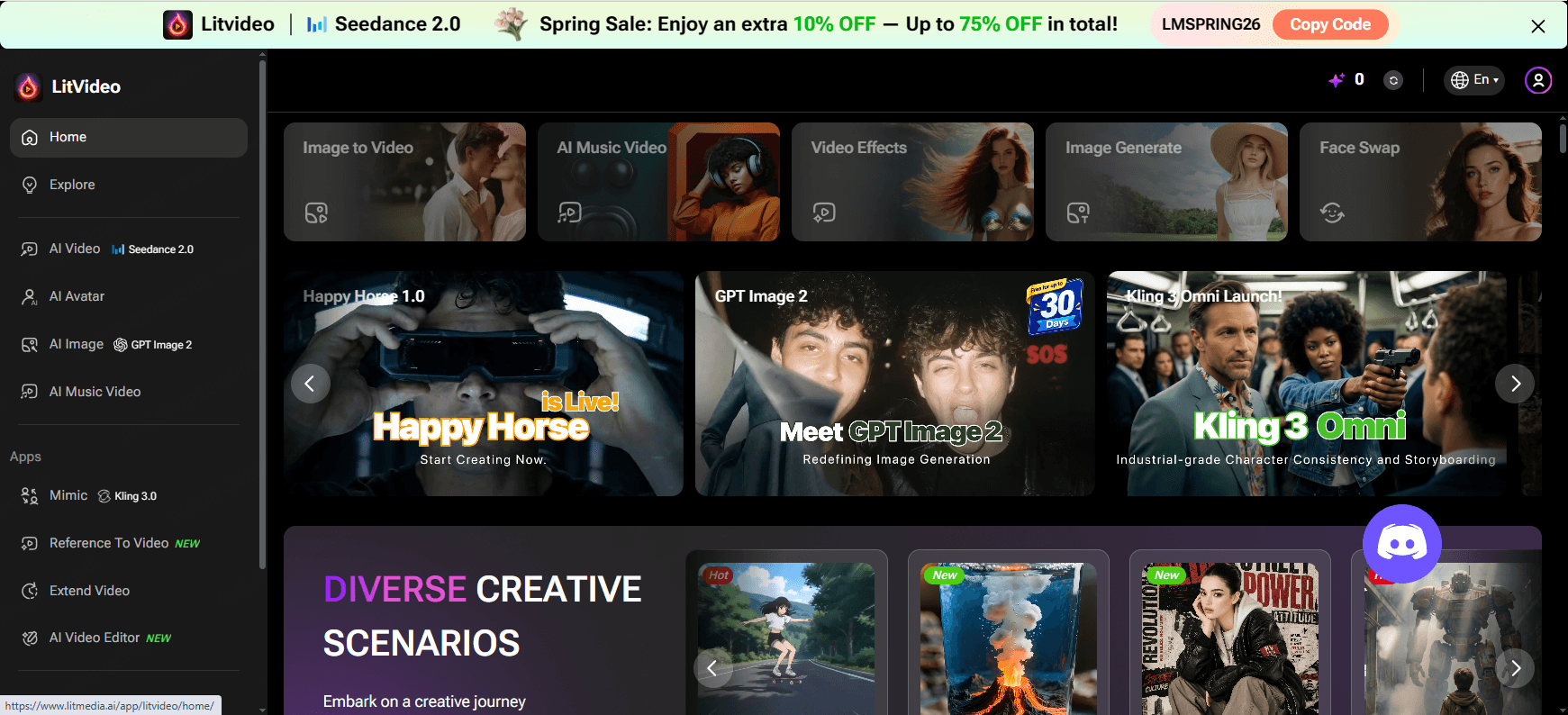
1. LitMedia LitVideo
LitMedia LitVideo is an AI-powered online video enhancer that helps users sharpen blurry footage, improve clarity, and upscale videos with minimal effort. Designed for creators of all skill levels, it provides automatic AI enhancement directly from the browser.
Main Features
- AI video sharpening and enhancement
- Upscale videos to higher resolution
- Reduce blur and noise automatically
- Enhance old or low-quality footage
- Browser-based editing with no installation required
- Fast AI processing and exporting
Supported Platforms
Windows, Mac, Android, iPhone, and all platforms can surf web browsers.
Why Choose LitMedia LitVideo?
LitMedia LitVideo is ideal for users who want quick and professional-quality results without complicated editing workflows. The AI enhancement process is beginner-friendly while still delivering high-quality output suitable for YouTube, TikTok, Instagram, and professional projects.
2. Clideo
Clideo is a simple online video editing platform that includes basic tools for improving video quality and making blurry footage appear cleaner.

Main Features
- Online video editing
- Video compression and resizing
- Basic sharpening and quality improvements
- Add subtitles and effects
- Cloud-based workflow
Supported Platforms
Windows, Mac, Android, iOS, and browsers.
Best For
Users looking for lightweight online editing and quick adjustments.
3. Flixier
Flixier is another browser-based video editor that includes video enhancement tools and collaborative editing features.

Main Features
- Cloud video editing
- Video enhancement tools
- Add effects and transitions
- Fast cloud rendering
- Team collaboration support
Supported Platforms
Windows, Mac, Linux, and Chromebooks.
Best For
Creators working on collaborative online editing projects.
4. Kapwing
Kapwing provides a user-friendly online editor with tools for improving video clarity and preparing content for social media platforms.

Main Features
- AI-assisted editing tools
- Online sharpening and enhancement
- Subtitle generation
- Social media resizing tools
- Beginner-friendly interface
Supported Platforms
Browser-based on desktop and mobile.
Best For
Social media creators and short-form content editing.
Part 3: Top Software to Clear Blurry Videos on PC
Desktop video enhancement software offers more advanced features and better processing power for professional-quality results. If you frequently work with video projects, PC software can provide greater control over sharpening, upscaling, color correction, and restoration.
Here are some of the best tools available for Windows and Mac users.
1. Adobe Premiere Pro
Adobe Premiere Pro remains one of the most widely used professional video editing applications. Adobe's video and photo editing tools are already well-known and highly effective products, but users should have a steep learning curve and come with a hefty price tag. If you're only using them to fix blurry videos, purchasing Adobe products offers very poor value for money.

Main Features
- Professional timeline editing
- Advanced sharpening and color grading
- AI-powered editing features
- Multi-camera editing support
- Motion graphics and transitions
Supported Platforms
Windows and macOS.
Best For
Professional editors and advanced creators.
2. Topaz Video AI
Topaz Video AI is a specialized video enhancement tool focused heavily on AI upscaling and restoration. Topaz Video is a tool specifically designed for video enhancement and restoration. It focuses almost exclusively on this one function and strives to do it as well as possible. Like Adobe, it offers an option for local processing, allowing you to run the tool on your local computer. This makes it easier to maintain confidentiality, bypass the impact of internet upload and download speeds, and better handle large local video files.

Main Features
- AI-powered video upscaling
- Noise reduction and sharpening
- Frame interpolation
- Restore old or damaged footage
- Improve low-resolution videos
Supported Platforms
Windows and Mac.
Best For
Advanced AI restoration and video upscaling projects.
3. VideoProc Converter AI
VideoProc combines video enhancement with conversion and editing features in a lightweight desktop application. Like Topaz, VideoProc is a software program focused on basic video editing features, including video and image enhancement.

Main Features
- AI video enhancement
- Noise reduction
- Video stabilization
- Compression and conversion
- GPU acceleration
Supported Platforms
Windows and macOS.
Best For
Users looking for an all-in-one video toolkit.
FAQ: How to Remove Blur from Video
Q1: Why do videos become blurry?
Videos often become blurry because of camera shake, low resolution, poor lighting conditions, compression, or incorrect focus during recording.
Q2: Can AI really unblur videos?
Yes. AI video enhancement tools can analyze blurry footage and rebuild missing details, improve sharpness, reduce noise, and upscale resolution automatically.
Q3: What is the easiest way to fix a blurry video?
Using an AI-powered tool like LitMedia LitVideo is one of the easiest methods. Simply upload your video, apply AI enhancement, and export the improved result.
Q4: Can I unblur videos online without downloading software?
Yes. Many modern tools, including LitMedia LitVideo, work entirely online in your browser and do not require installation.
Q5: Can blurry videos be converted to HD or 4K?
AI upscaling tools can improve resolution from SD to HD or even 4K while enhancing clarity and reducing artifacts.
Q6: Do AI video enhancers work for old videos?
Yes. AI enhancement tools are commonly used to restore old footage, improve clarity, sharpen details, and reduce grain or compression artifacts.
Q7: Is LitMedia LitVideo suitable for beginners?
Absolutely. LitMedia LitVideo is designed with a simple workflow that allows beginners to enhance videos with only a few clicks.
Conclusion
Blurry videos no longer have to ruin your content. Whether your footage suffers from motion blur, poor lighting, low resolution, or compression issues, modern AI-powered enhancement tools can restore clarity quickly and effectively.
Online tools like LitMedia LitVideo make the process simple for beginners by providing automatic sharpening, AI upscaling, and quality restoration directly from the browser. Meanwhile, desktop software solutions offer more advanced editing options for professional creators who need greater control.
If you want faster workflows, cleaner footage, and higher-quality video content, AI video enhancement is one of the most effective solutions available today. Try LitMedia LitVideo and transform blurry videos into sharp, professional-looking content in just a few clicks.
Share article:


