











Discord has become the go-to platform for gamers, streamers, and online communities to connect, chat, and share experiences. But sometimes, regular voice chats can feel a bit monotonous—so why not spice things up? The Voicemod Soundboard lets you add hilarious effects, meme sounds, and background music right into your conversations. Whether you want to surprise your friends or enhance your live streams, this easy guide will show you how to use the Voicemod Soundboard on Discord like a pro!
In This Article
01 What is Voicemod Soundboard?
Voicemod is an innovative real-time voice changer and soundboard application for Windows. The Soundboard feature allows you to play diverse sound effects instantly during voice chats or streams. Imagine hitting a single key to play a meme sound, a dramatic drum roll, or your favorite gaming catchphrase—all live while chatting on Discord!
Key Features:
- Huge library of pre-loaded sounds and memes.
- Customizable buttons and easy organization.
- Simple integration with Discord and other chat apps.
- Perfect for gaming, role-playing, or just having fun with friends.
02 How to Use the Voicemod Soundboard on Discord Step by Step
Ready to get started? Follow these simple steps:
Head over to Voicemod's official website and download the Windows installer. Run the installer and complete the setup. Create a Voicemod account if prompted.

Launch Discord and click the User Settings gear icon in the bottom-left corner. Navigate to Voice & Video settings.
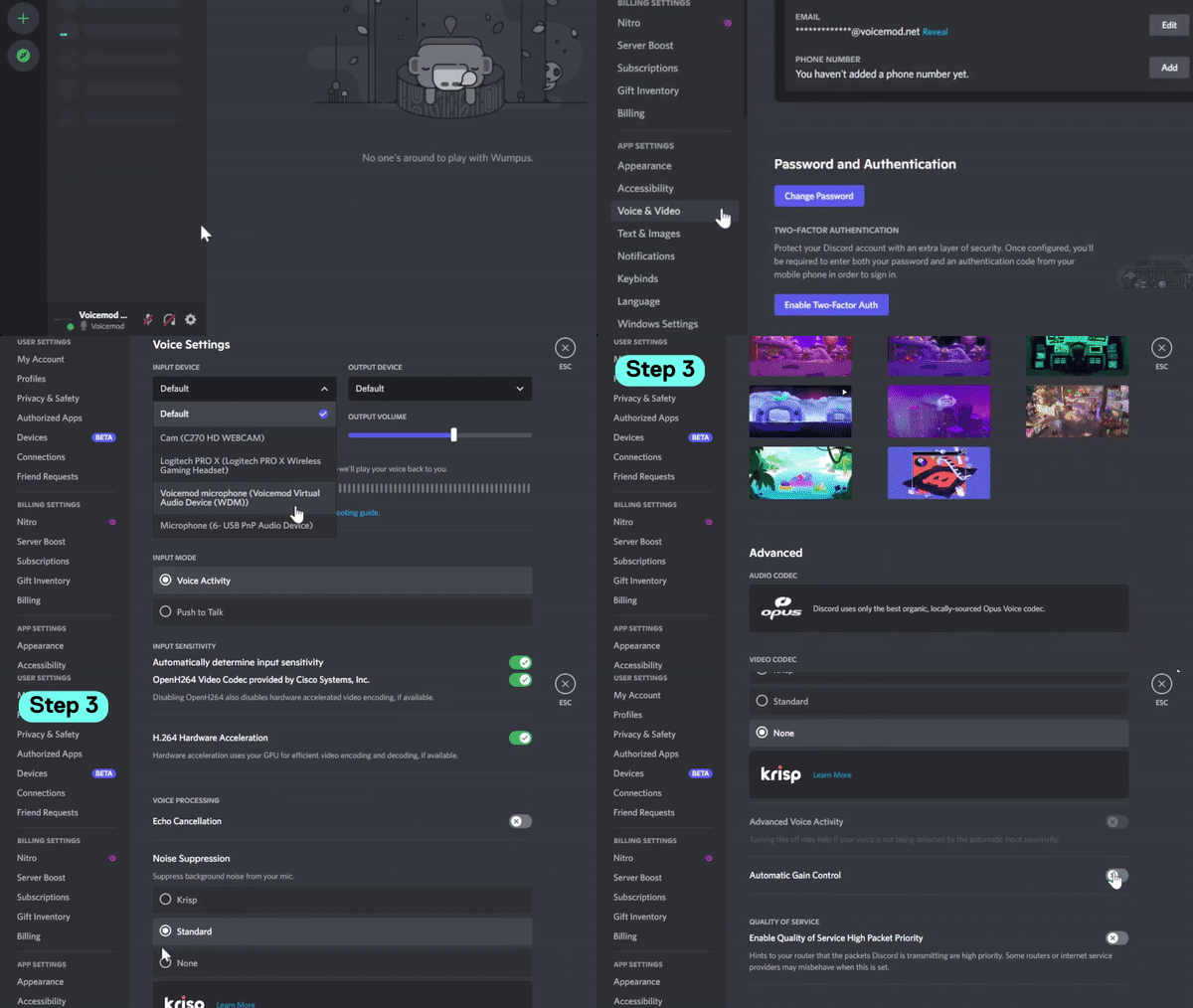
In the input device dropdown menu, select Voicemod Virtual Audio Device. This links Discord to Voicemod so all your effects and soundboard actions come through.
Open the Voicemod app and go to the Soundboard section. You can:
- Browse the library for built-in sounds
- Upload your own audio or memes
- Assign sounds to hotkeys for quick activation
Pro Tip: Try adding your favorite YouTube sound bites for a personalized touch!
Join a Discord voice chat or server. Press your assigned hotkeys, or click the soundboard buttons in the Voicemod app, and listen as your chosen sounds play through Discord!
03 Troubleshooting and Tips
-
No sound output?
Check that your hardware and software settings match: Voicemod should be set as the input device in both Discord and Windows audio settings. -
Lag or delays?
Close unused apps and check for updates to Voicemod and Discord for optimal performance. -
Mic feedback or echo?
Use a headset and turn off 'Listen to this device' in Windows' microphone settings. -
Enhance your experience:
Regularly update your soundboard, try out new effects, and adjust volume levels for balanced audio. Experiment and have fun!
04 Frequently Asked Questions (FAQs)
1. How to Use the Voice Changer in Discord?
Once Voicemod is set as your input device in Discord, just select any voice effect in the Voicemod app. Speak into your mic—the effect automatically applies during live chat! Whether you want to sound like a robot, witch, or someone famous, just pick your favorite and go.
2. How to Keybind Soundboard on Voicemod?
Within the Voicemod Soundboard tab, click any sound slot, then hit the 'keybind' option and press your preferred key. You can assign shortcuts like CTRL+1 or ALT+Q for fast access to specific sounds while gaming or streaming.
3. Can I use Voicemod Soundboard on my phone?
Yes, you can! Voicemod has a mobile app for both iOS and Android that lets you create and play custom soundboards, record voice clips, and share funny audio with friends. However, real-time voice changing during calls or live chats is only available on the desktop version for now.
4. Is Voicemod Soundboard free?
Voicemod offers both a free version and premium plans. The free plan has plenty of sounds and features for casual users—try it out before upgrading for more content.
5. Why isn't my sound playing on Discord?
Double-check that Voicemod Virtual Audio Device is set as Discord's input device, that the sound's volume isn't too low, and that you're not on push-to-talk mode. Restart both apps if problems persist.
Conclusion
Discord chats become infinitely more engaging with the Voicemod Soundboard in your toolkit. From pranks, memes, and background music to tactical sound effects for gaming, the possibilities are endless! Now that you know how to set it up, go ahead and experiment—your next group call may never be the same!
Bonus Tip
Looking for more free soundboard resources and powerful AI media tools? Check out LitMedia—an AI media tools platform offering AI video, image, and music generators, plus a massive collection of free soundboard resources✨. If you need soundboard materials and inspiration, feel free to explore and discover your next favorite sound effect!
Share article:


